The Rename/Copy/Move Tool
The rename/copy/move tool allows you to safely change the name of a customer database and/or copy or move the database while keeping the entire asset folder in sync with it. If you aren't comfortable using the Windows File Explorer to manually rename, copy, or move a customer database, this tool is an excellent alternative. It has a few advantages over using File Explorer as well: in addition to keeping the database and asset folder synchronized, the tool will also check for any file locks that might prevent the entire operation from succeeding. If the database or any image files are in use by another application, Aspect will not proceed with the operation and display appropriate messages telling you which application has specific files locked.
You may also rename/copy/move the currently open customer database, although once the operation begins Aspect will close the database then re-open it once the operation is complete.
|
|
Aspect can detect when a database and its asset folder might belong to a parent folder (that is, a parent folder with the same name as the database). If it does, it will ask you if you want to move/copy the parent folder as well as the database and asset folder. |

|
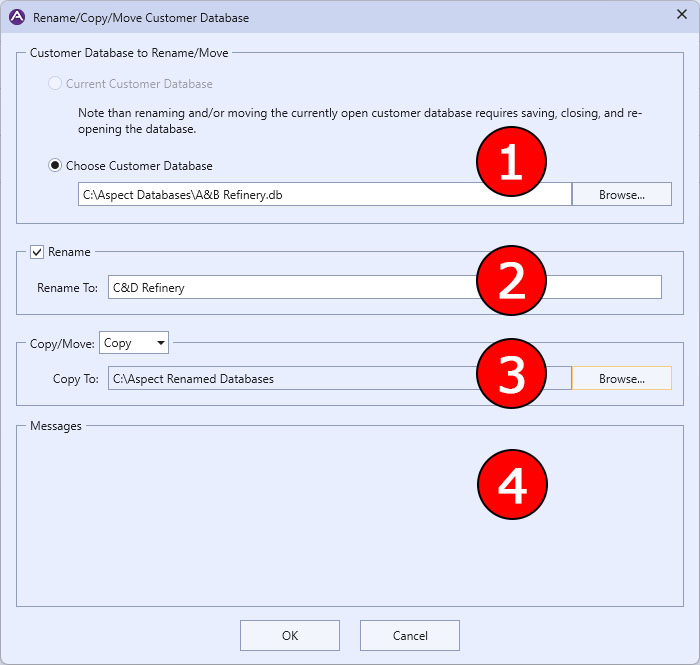
The Rename/Copy/Move Customer Database Dialog |
1 This section allows you to choose the database you want to work with--either the currently open one or a different one you select.
2 This section allows you to change the name of the customer database, which also changes the name of the asset folder. This option may be used alone or in conjunction with moving or copying. If checked, the database will be renamed to the filename you choose. If copy/move is set to something other than "None", the database and asset folder will be renamed during the move/copy operation.
3 This section allows you move or copy the database to a new location.
4 Any warning or error messages about the operation appear here.
|
|
Customer databases created in versions of Aspect prior to 2.16 that have custom locations for their asset folders cannot be copied because Aspect knows where the copied customer database needs to go, but since the asset folder could be anywhere, Aspect won't have a reference for where the asset folder needs to be copied to. |

Here are some common scenarios:
"I just want to rename my database, not copy or move it."
Simply check "Rename" and provide the new name of the database you want. Make sure that the "Copy/Move" option is set to "None". Note that "Rename To:" only contains the name of the database--no path information such as "C:\Aspect Databases\...".
"I want to move my database, keeping the same name."
Make sure "Rename" is not checked, choose "Move" from the "Copy/Move" section, and browse to the location you want the database to be.
"I want to copy my database and rename it too."
Check "Rename" and provide the new name of the database you want. Then choose "Copy" from the "Copy/Move" section, and browse to the location you want the database copied to.