The Customer Database Asset Folder
In order to provide the fastest access to images and allow for an external repository to keep any images or other documents associated with a customer, Aspect relies on an Asset Folder to store these items. That asset folder is created in the same folder as the customer database when the customer database is first created and has the name "[Customer Database Name] Assets". So for example, if your customer database is stored in C:\AspectDatabases and called "Industrial Enterprises.db", then the asset folder will be "C:\AspectDatabases\Industrial Enterprises Assets".
|
|
Aspect determines the location of the asset folder when the customer database is opened and uses the customer database's filename to find it. Therefore, if you ever need to change the filename of the customer database, you must also change the name of the asset folder to match it. |

For the warning above, that means if you change the name of the customer database from "Industrial Enterprises.db" to "IndEnterprises.db", you should also rename the asset folder to "IndEnterprises Assets". As an alternative to doing it manually, we recommend using the Rename/Copy/Move tool.
When opening a customer database, if Aspect doesn't locate the asset folder in the location it expect it to be, it will attempt to find the location of the asset folder by using a unique identifier associated with the folder. In order for this to work, the following conditions must be true:
- The file system that the asset folder resides on must be NTFS. This will usually be the case for most Microsoft Windows drives.
- If the asset folder has moved or been renamed, it must be on the same drive. For example, if the folder has moved from your C: drive to your D: drive or to an external drive, Aspect won't be able to find it.
- This feature is available starting with Aspect version 2.9.2.1. If you have any existing customer databases that were created prior to this version, then Aspect must be able to successfully open the customer database and find the asset folder once. After that, the unique identifier of the asset folder will be known and Aspect will be able to track it.
Within the asset folder, data is organized by sites and inspections based on their unique numbers. So a typical folder structure might look something like this:
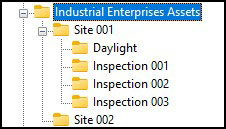
Note the additional Daylight folder, where all daylight equipment images are stored for Site 001 and used by all three inspections. This Daylight folder is only created by Aspect when importing an existing inspection. Otherwise, all daylight and infrared images that are imported by Aspect are stored in the inspection folders. You can place any file you want in these folders. So you could put a site-specific safety plan in the Site 001 folder, and since Energized Work Permits are associated with an inspection, you could put a signed PDF of that permit into the appropriate inspection folder. This keeps all assets associated with a customer database in one folder structure.
|
|
The easiest way to find the asset folder for a site or an inspection is to right-click on the site or inspection and choose Show Asset Folder. |