Auto-Sequenced Fields
Auto-Sequenced Fields
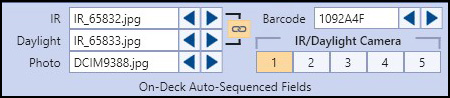
Auto-sequenced fields increment image numbers and barcodes as you move through an inspection. Since cameras and rolls of barcodes sequence in a known fashion, Aspect takes advantage of this by automatically filling in image filenames and barcodes as you move through an inspection.
|
Auto-Sequenced Fields in the Ribbon Bar |
In order to work properly, these fields must contain a numeric component that Aspect can identify and track. For barcodes, this can include uppercase alphabetic characters except I and 0 (because they get confused with one and zero easily). Once you enter these fields, Aspect scans the text and converts it into a template. For image fields, this is how Aspect parses the filename:
- It starts at the last character of the filename and works back towards the first character until it finds a digit (0-9).
- Everything after that number becomes the suffix of the template. This part of the sequenced field never changes.
- Aspect now continues scanning back towards the first character of the filename until it either reaches the beginning or finds something that isn't a digit.
- Everything before that position in the filename becomes the prefix of the template. Like the suffix, this part of the sequenced field never changes.
- Everything in the middle (which we now know is a string of digits) becomes the number of the template.
- When asked to deliver the next field in the sequence, Aspect delivers a string that is made of the prefix plus the number plus the suffix, and then increments the number for the next field whenever it's called for.
So for example, the IR number in the image above (FLIR65832.jpg) would break down like this:
|
Prefix |
FLIR |
|
Number |
65832 |
|
Suffix |
.jpg |
When you take a reading of some piece of equipment and ask Aspect to fill in the IR image number, it will deliver FLIR65832.jpg. But what would it deliver the next time you ask for an IR image number? The answer depends on the state of the link button to the right of the IR and Daylight text boxes. When linked (as in the picture above with a beige button and black lines), it tells Aspect that the two image fields are paired in the infrared camera. That is, the infrared and daylight pictures are taken at the same time, treated as a pair, and therefore the image numbers advance by 2 every time a set of pictures is taken. If the infrared and daylight images are not treated as a pair, unlink the two fields and every time an auto-sequenced infrared or daylight filename is used the on-deck sequence will only advance by 1.
It is entirely possible for an infrared camera to take both the infrared and daylight pictures at the same time, but still advance the image numbers by only 1. This could be the case if the two prefixes are different but the images are taken by the same camera at the same time. So you might have an infrared number of "IR_65832.jpg" and a daylight picture of "DC_65832.jpg". The same image numbers indicate a pair of images, but because the prefixes are different, the image numbers only advance by 1 each time. So the next pair of images would be "IR_65833.jpg" and "DC_65833.jpg". For a case like this, the link button should be toggled off. Likewise, we have seen instances of FLIR cameras that have different prefixes on the infrared and daylight filenames, but still advance by 2 on each, requiring the link button to be toggled on.
|
|
The photo image auto-sequenced field always increments by 1. It is not tied to any other auto-sequenced field like the IR and Daylight image auto-sequenced fields are. |

The auto-sequenced barcode field behaves in a similar fashion, but as noted above, barcodes can also contain uppercase letters that can be sequenced. Sequenced barcodes with letters will skip the letters I and O, because they're too similar in look to the numbers 1 and 0.
|
|
If you use sequenced uppercase letters in your barcodes, you must tell Aspect that you want those letters sequenced. To do this, choose Barcodes Have Numbers and Uppercase Letters in the barcode section of Settings. |
Finally, Aspect supports up to five auto-sequenced pairs of IR and Daylight filenames, selected with the IR/Daylight Camera number in the bottom right part of the auto-sequenced fields. The Photo and Barcode sequences are independent of the IR/Daylight pairs. For example, you could have a case where you bring two Infrared cameras on an inspection, one with a wider-angle lens than the other for close-up work or where space constraints require you to be closer to the equipment for the photograph. Or you might have multiple thermographers on one inspection, each taking pictures with their own cameras. In either case, you can set up a sequence of IR and Daylight photographs for each camera you have and switch between them before you fill in default values. You can also name these five camera slots. Right-click on any of the buttons 1-5 and choose "Name Sequenced Camera…". In the dialog box, you can either type in a name manually or choose one of the cameras defined in your global library. Once a camera slot has been named, hovering over that button will display the camera's name in a tooltip.
|
|
You can set the current sequence pair by using the shortcut keys Ctrl plus the sequence number (1 - 5). For example, pressing Ctrl+3 would set the current sequence pair to #3. |
|
|
When using multiple IR/Daylight cameras, it is imperative that each camera has a unique set of image numbers for the same inspection. If multiple cameras produce overlapping image numbers, then Aspect has no way of telling which image goes with which camera during image importing, which would lead to incorrect images being assigned to items that reference those images in Aspect. |