Custom Reports
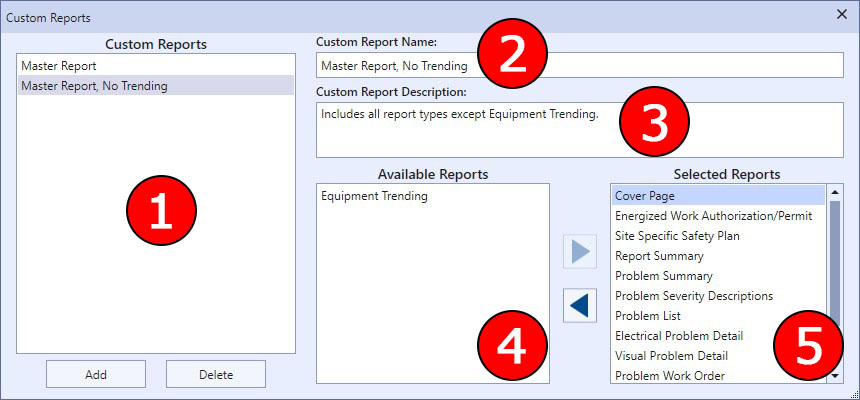
The custom reports dialog is where you define your own reports that are composites of the Aspect stock reports in any order you want. You can define an unlimited number of custom reports. For example, you may have a comprehensive "Master Report" that includes all of the report types. Then, you can define the same Master Report that doesn't include Equipment Trending (which can often be hundreds of pages). Both of those examples are illustrated below.
|
The Custom Reports Dialog |
1 This list contains all of the custom reports you have designed.
2 This text box contains the user-defined name for the selected custom report. This name will appear in the list of reports in the Reports window.
3 This text box contains the user-defined description for the selected custom report. This description will appear in the Report Description field in the Reports window.
4 This list contains all of the available reports that can be added to the custom report.
|
|
Available reports can only be added to the custom report once--you cannot have more than one instance of a built-in report in the custom report. |

5 This list contains all of the selected reports in the custom report and in the order they will be printed.
The two triangle-shaped buttons between the available and selected reports list move the built-in reports between the two lists. Additionally, you can also drag and drop the reports between the two lists.
For more information on creating custom reports, see the topic on Creating Custom Reports.