Reports
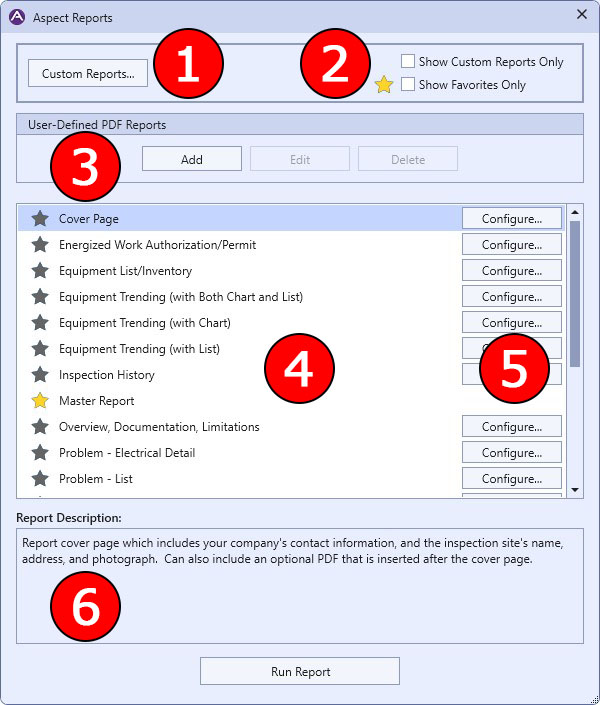
The Reports dialog, accessible from the ribbon bar's Tools page, is where you run any of the stock reports included with Aspect, or build your own custom reports comprised of any number of the stock reports and in any order.
|
The Reports Dialog |
1 This button opens the Custom Reports dialog box, allowing you to add/edit/delete the custom reports you have designed.
2 These two check boxes perform the following functions:
|
When checked, the stock Aspect reports will not show up in the report list--just the custom reports you've created. |
|
When checked, only reports that have been marked as a Favorite (see below) will show up in the list. |
3 This section allows you to create your own user-defined reports that operate in the exact same manner as the Energized Work Authorization/Permit, Site Safety Plan, and Overview, Documentation, Limitations reports. Essentially, you can create a report, configure it with the PDF of your choosing, and insert it anywhere you want in your custom reports.
4 The report list contains names of both the Aspect stock reports and any custom reports you've created. The gray stars on the left side of the list can be clicked to make the selected report a Favorite. Once clicked, the star will turn yellow. If you want to remove the report from the list of favorites, just click the star again.
5 Some reports require configuration to run properly, such as the Energized Work Authorization/Permit which requires a reference to an Adobe PDF file. Clicking this button allows you to set that data.
6 This is a text description of the selected report. For custom reports, this description is customized by the user.