Report Configuration
Some reports require additional configuration before they can be run, and that is managed in the Configure Report dialog.
|
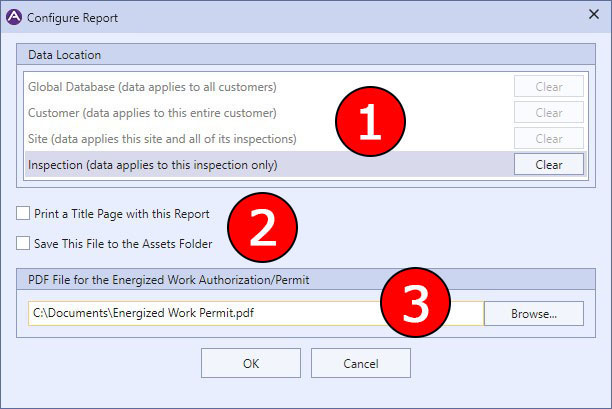
A Report Configuration Dialog |
1 The configuration data for a report is stored at up to four different levels:
|
This means that the configuration applies to all customers, and will be used no matter what customer database is currently open. A good example of this use would be the Overview/Documentation/Limitations report, since the data in that report is typically defined by the inspection company and applies to all customers. This configuration is stored in the global database. |
|
This configuration applies to this customer only. All sites and inspections within this customer database will use this configuration. |
|
This configuration applies to this site only. A good example of this would be the Site Specific Safety Plan report, since the data on this report typically doesn't change between inspections. |
|
This configuration applies to the current inspection only. A good example of this would be the Energized Work Authorization/Permit report, which is typically created for each inspection. |
Customer, Site, and Inspection configurations are stored within the customer database. Note that it is possible to configure a report for more than one level. So you might have a configuration for a particular report that is stored at the global, site, and inspection levels. If this is the case, Aspect will use the configuration in the most specific order first. Therefore, an inspection configuration will be used first, followed by site , then customer, then global.
The Clear button for each level allows you to remove any configuration at that level. Note that the button will be disabled if no configuration currently exists at that level. Also, when a level contains no configuration, the text of that list item will be dimmed (such as Global, Customer, and Site in the image above).
2 These two check boxes perform the following functions:
|
If checked, a title page containing the name of the report will be printed before the actual report. |
|
If checked, the file chosen will be copied to the customer database's asset folder. For customer data, it will be stored in the root of the asset folder. For site data, it will be stored in the site's asset folder. And for inspection data, it will be stored in the inspection's asset folder. Note that this option is disabled for data at the Global Database level. |
3 This is where you choose a file to be associated with the report. If the Save This File to the Assets Folder check box is not checked, the file will be referenced at its current location.
|
|
Many reports have more detailed configuration options than in the image above. |