Integrity Checks
Integrity checks are a means for Aspect to quickly perform the task of ensuring that data is complete and has no issues. They are configured by the user in the Integrity Check Configuration Dialog, located on the Settings page of the ribbon bar. Aspect can scan a 500 page report checking for any missing data in a matter of seconds.
|
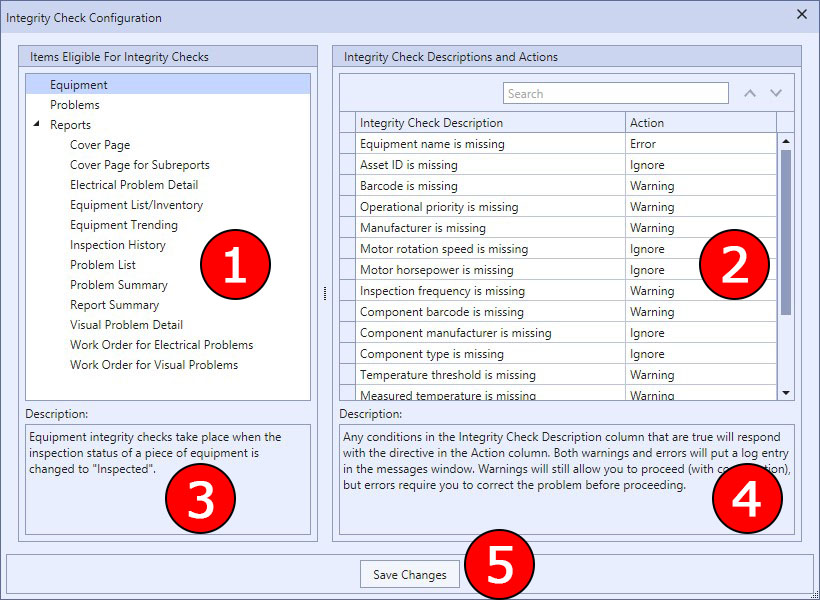
The Integrity Check Configuration Dialog |
1 Integrity checks are performed on three types of items at various times while running Aspect:
|
Equipment integrity checks are performed when the user changes the inspection status of a piece of equipment to "Inspected" or "Inspected (No IR Data)" |
|
Problem integrity checks must be performed manually by the user, either by clicking the button in the upper-right portion of the problem detail window or on the ribbon bar. |
|
Report integrity checks are performed when a report is run. |
2 For each of the three types of items listed in #1, you can configure Integrity Check Fields with Actions. Integrity check fields are specific pieces of data that are checked for any issue. If Aspect encounters an issue with a field during an integrity check, it will take one of three types of Actions:
|
Any integrity check that results in an issue will be ignored. |
|
The user will be notified at the end of the integrity check, but will be allowed to proceed if confirmed. For equipment checks, this means the user will be allowed to set the status to "Inspected". For reports, this means the report can be run. |
|
The user will be notified at the end of the integrity check, but the issue must be corrected before the user is allowed to proceed (except for integrity checks performed on problems). |
If an integrity issue is found and the action for that issue is not Ignore, then a log entry will be generated in the messages window with the appropriate icon (either warning or error) and a detailed description of the issue. Double-clicking on any integrity issue will immediately take you to the source of the issue.
3 This is a description of the selected item type.
4 This is a brief outline of how integrity checks work. This text does not change as items are selected--it is there to provide a guide for setting the actions.
5 Since this dialog box does not allow you access to the Save Database button, this button allows you to save changes to the database if you're making a large number of changes.