Importing Items
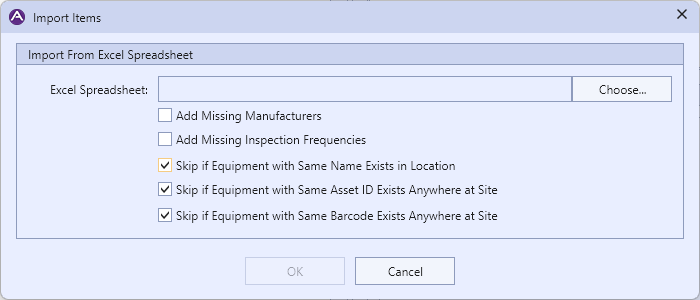
Aspect has the ability to import locations and equipment along with some of their data fields through a properly formatted Microsoft Excel workbook. You can import items through the button on the Tools page of the ribbon bar.
|
The Import Items Dialog |
Dialog Options:
You have the option to automatically add missing manufacturers and/or inspection frequencies if they appear in the spreadsheet but are not in the global database. If these options are unchecked and an item in the spreadsheet does not appear in the global database, Aspect will log a warning that you can double-click on to be taken to the new equipment and set it manually.
You also have the option to skip items if they already exist based on three criteria: name, asset ID, and barcode. For the first option, if a piece of equipment with the same name already exists at the same location, then the item will be skipped. In this case, names are not case sensitive, so "Transformer" and "transformer" are considered the same. For the other two options, since asset IDs and barcodes are generally unique to a site, if any piece of equipment at that site exists with the same asset ID/barcode then the imported item will be skipped. In this case, the values are case sensitive, so "123abc" and "123ABC" are considered to be different. If a piece of equipment is skipped for any of the three options, a warning will be logged.
Workbook Format:
- All of the data for importing equipment must be contained in the first worksheet of the workbook.
- Each column in the first row of the worksheet (row 1) must contain the name of the data in the column:
- Locations must begin with "Loc". Location columns must appear first in the column order and you cannot have more than 10 location columns. Each subsequent location column is a sub-location of the column preceding it. So in the formatted example image below, Level A would be a root location, which would contain Main Elec Room as a sub-location, and Main Elec Room would contain MSB 1 as a sub-location.
- Names of equipment must be "EquipmentName". Equipment names are required.
- Equipment descriptions must be "EquipmentDesc".
- Equipment notes must be "EquipmentNotes".
- Equipment Inspection Notes for the active inspection must be "InspectionNotes".
- The equipment Asset ID must be "AssetID".
- The equipment barcode number must be "Barcode".
- The equipment Priority Code must be "PriorityCode".
- The equipment Manufacturer must be "Manufacturer".
- The equipment Inspection Frequency must be "InspectionFrequency".
You can also import the following component reading data, which will be associated with the Primary Inspection Point component in the active inspection:
- Temperature Threshold must be "TempThreshold".
- Measured Temperature must be "MeasuredTemp".
- Ambient Temperature must be "AmbientTemp".
- Daylight image filename must be "DaylightImage".
- Infrared image filename must be "IrImage".
- Component Reading Notes must be "ReadingNotes".
- Internal Component Reading Notes must be "InternalNotes".
- Component Reading and Equipment inspection status codes must be "Status".
|
|
All column names are case-insensitive, so "AssetID", "ASSETID", and "assetid" are all acceptable column names for the Asset ID. |

- Priority Codes must be one of the following values. These values are also case-insensitive:
- Critical to Operations
- Essential to Operations
- Non-Essential to Operations
- Not Classified
- Manufacturers and Inspection Frequencies must match one of the Name values in their corresponding global library table. These values are also case-insensitive.
- Inspection status codes must be named as they appear in the equipment and component reading inspection status drop down lists (in the left column). The value in this column will be set for both the component reading and equipment inspection status. If a cell value in this column is left empty the inspection status for the imported item will be set to Pending.
These are the item status codes:
- Pending
- Inspected
- Inspected (No IR Data)
- Not Insp, No Load
- Not Insp, No Time
- Not Insp, Under Repair
- Not Insp, Unknown
- Not Insp, No Access
- Not Insp, Locked Out
- Not Insp, Not scheduled
- Not Insp, Decommissioned
- Not Insp, Removed
- Not Insp, No LOS
- Not Insp, Spare Part
- If any value except for the equipment name column is empty, or the value in the Priority Code, Manufacturer, or Inspection Frequency columns cannot be found, those values will be left empty in the imported item.
- If an equipment name is provided but all location columns are empty, the equipment will be added as a root of the tree view. In other words, the equipment will have no parent location.
- For data associated with an inspection (equipment inspection notes and component reading data), if no inspection is active these columns will be ignored.
Here is an illustration of a properly formatted Excel workbook:
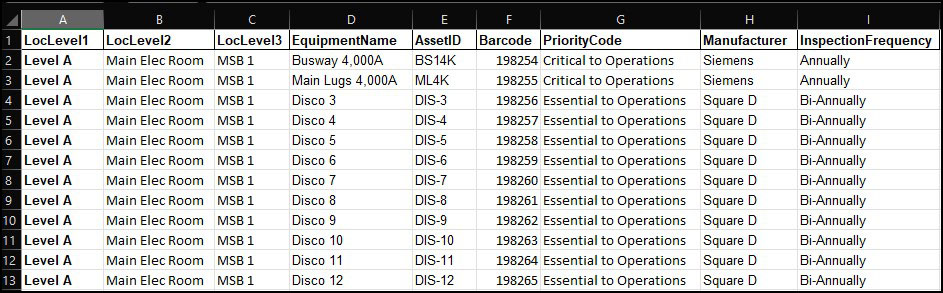
Aspect will read through rows in the workbook and attempt to import items until the location in column A is empty and the equipment name is empty. That is Aspect's signal that no more data exists in the workbook. After importing the items, Aspect will log a message telling you how many items were successfully imported.
Importing Location Data:
Aspect can also import location data such as the location description, barcode, notes, etc. The rules for formatting location data is very similar to equipment data and are as follows:
- All of the data for importing locations must be contained in the second worksheet of the workbook.
- Each column in the first row of the worksheet (row 1) must contain the name of the data in the column:
- The designation of a location is exactly the same as for equipment. So in the formatted example image above, Level A would be a root location, which would contain Main Elec Room as a sub-location, and Main Elec Room would contain MSB 1 as a sub-location. If this location exists, it's data will be set according to the subsequent columns. If the location does not exist, it will be created.
- The location's description must be "Description".
- The location's barcode number must be "Barcode".
- The location's notes must be "Notes".
- The location's default manufacturer must be "Manufacturer".
- The location's inspection notes for the active inspection must be "InspectionNotes".
- The location's inspection status must be "Status".
- Inspection status codes for locations must be named as they appear in the inspection status drop down lists (in the left column). If a cell value in this column is left empty the inspection status for the imported item will be set to Pending.
These are the location status codes:
- Pending
- Inspected
- Inspected (No IR Data)
- Not Insp, No Load
- Not Insp, No Time
- Not Insp, Under Const.
- Not Insp, Unknown
- Not Insp, No Access
- Not Insp, Locked Out
- Not Insp, Not scheduled
- Not Insp, Decommissioned
- Not Insp, Removed
- Not Insp, No LOS
- Not Insp, Spare Part
- For data associated with an inspection (inspection notes and inspection status), if no inspection is active these columns will be ignored and a warning will be logged to the message window.