The Recycle Bin
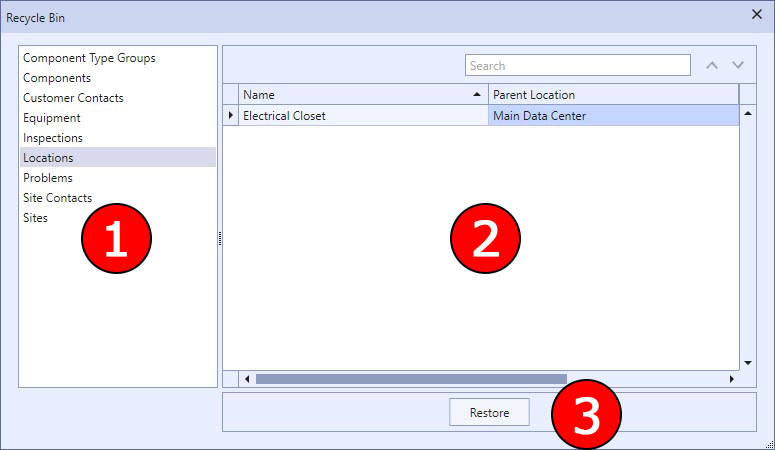
The Recycle Bin is where deleted items are stored until purged from the customer and global databases. Its functionality is exactly similar to the Windows Recycle Bin: when you delete a file in Windows, it is first sent to the Recycle Bin. Then, when you're sure you want to permanently delete the files in the Recycle Bin, you can choose to empty it. Until that time however, you can open the Recycle Bin, choose anything in it, and restore it to its original location. The Recycle Bin in Aspect works in the exact same way. As you delete many (but not all) types of items in Aspect, they are sent to the Recycle Bin. In the image below you can see the types of items that are sent to the Recycle Bin when they are deleted.
|
|
With the exception of Component Type Groups, items in the global library are NOT sent to the Recycle Bin but instead are simply deleted. |

|
The Recycle Bin |
1 Choose from the type of item you want to see in the Recycle Bin. For example, if you deleted a location from Aspect that you now want to restore, click on Locations in the list to see all locations that have been sent to the Recycle Bin.
2 This grid contains all items of a particular type that have been sent to the Recycle Bin. Their data values are not editable--you can only select the entire item and choose to restore it. You can multi-select items in this grid. For more information, see the topic on Selecting Multiple Items.
3 Use the Restore button to restore the currently selected item from the Recycle Bin.
|
|
The option to empty the Recycle Bin is normally hidden because it is an irreversible operation that permanently deletes everything in the Recycle Bin. To see the option to Purge the Recycle Bin, hold down the Ctrl key while clicking on the Recycle Bin in the ribbon bar. Be absolutely certain you want to Purge the Recycle Bin before proceeding! |