Using Barcodes and Barcode Readers
Barcodes are a very handy, almost necessary, component of conducting inspections. They're typically comprised of an electronically readable code in one of many formats, and a human-readable string of characters (often a number). When you use barcodes on equipment and sometimes locations, it makes the process of identifying that equipment on future inspections much easier. Plus, barcodes can be purchased with customized text such as your company name, website, email address, and phone number. Here is a barcode used by Cascade Thermal Imaging:
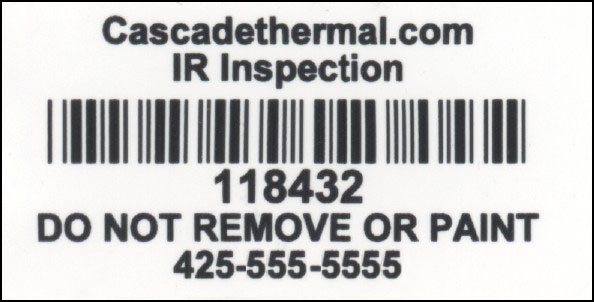
One supplier of barcodes we recommend is www.idlabelinc.com. You can download a sample layout for these barcodes at https://www.exserosoft.com/download/CTIBarcodeExample.pdf.
Setting up Barcodes
Barcodes purchased with sequential numbering can be used by Aspect's sequencing system. Just like images, Aspect can auto-sequence these barcodes as you apply them to equipment. See the section on Using Auto-Sequenced Fields for more information on setting up barcodes for sequencing. However, one thing Aspect needs to know before sequencing barcodes is whether your barcodes include letters in the sequencing. In the sample barcode above, only numbers are used. However, some barcodes include letters in their sequencing such as "118TP9". Aspect needs to know if barcodes contain letters because when they do, the digit following 9 is A, not 0 as in normal counting. Therefore, if you had a barcode sequence that contained letters, but only numbers were in the current barcode, which can easily happen, then sequencing would not work properly. Take this example:
Your current barcode is 118439 and this roll of barcodes does contain letters. On the roll, the next barcode in the sequence would be 11843A, not 118440. If you didn't tell Aspect that the barcodes contain letters, it would sequence to 118440 and the numbers would be wrong.
You might say, "If I enter a starting number of 118TP9 then Aspect should know that the barcodes contain letters. Why do I explicitly have to tell it?" The reason is that not all barcodes that can contain letters will contain letters. So that roll could easily start with 118439 and Aspect would have no way of knowing that the roll of barcodes contain letters. That's why you have to explicitly tell Aspect. You can configure this in the Barcode section of the Settings window, located on the Settings page of the Ribbon Bar.
Using a Barcode Reader
While you can simply walk up to a barcode like the sample on above, look at the number, and locate it manually, Aspect also supports barcode readers. Barcode readers come in a variety of models, wired and wireless, that range from $20 to more than $1000 for the ultra-rugged models that can scan a barcode that's been weathered from a few feet away. The choice is yours depending on budget, how heavily you'll be using it, and the environments you'll be using it in. We highly recommend a wireless model, because otherwise you'll be tethered to your computer and only have a few feet of cord in which to scan your barcode. The wireless models usually work with a range of about 25' from the computer to as much as 300'. Generally, barcode readers function in one of two modes:
- HID, which stands for Human Interface Device. In this mode, the barcode reader operates just like a keyboard attached to your computer. When you click the trigger on the reader, the reader "types" the barcode's sequence of characters into the computer just as if you had typed it with the keyboard. Wherever the text cursor is on the computer, that's where the barcode will be typed.
- VCP, which stands for Virtual Com Port. In this mode, the reader stops working like a keyboard and instead shows up on the computer as a serial port device. When you click the trigger on the reader, the reader send the sequence of characters to that port where any program that is listening to that port can pick up the characters and do whatever they want. In simple terms, think of this mode as a telephone system. When the reader connects wirelessly to the computer (usually through Bluetooth), that's the equivalent of creating the phone lines. Then, Aspect uses the port number of the barcode reader to "call" it (so the port number is like a phone number). Then Aspect just sits there and listens on the call for the barcode reader to spout off barcode numbers. When Aspect "hears" a barcode, it searches the database for it.
|
|
Com ports got their start way back in the early days of digital computers and often were known as RS-232 serial ports. These ports were physical connections made to the computer with a 9-pin or 25-pin cable. Then information was transmitted serially over the port one bit at a time at a predetermined speed. These ports were largely supplanted by USB (Universal Serial Bus) connections which are far more flexible and faster. However, even though most modern computers don't have physical serial ports anymore, things like barcode readers can still push data over a virtual port since the amount of data is so small. With a virtual port, software installed on your computer (a driver for the barcode reader or Bluetooth) acts as a serial port. When the barcode reader scans a barcode, the driver receives the data and routes it to the virtual serial port. |

Each mode of operation has advantages and disadvantages:
HID mode has the advantage of being extremely easy to configure, and in fact most barcode readers come out of the box configured for HID. The disadvantage is that they're largely uncontrollable. You have to always place the cursor in either the Search box of the item tree or in the barcode text box of equipment, locations, or components. Otherwise, you'll get a barcode typed in anywhere. Even if you're in the Search box, if you double-trigger a barcode it will get typed into the Search box twice and Aspect won't be able to find the code. Also, Aspect cannot search for barcodes on components in this mode.
VCP mode has the advantage of Aspect knowing exactly what to do when a barcode is read. It performs a search on equipment, components, and locations (in that order) and automatically takes you to the item with that barcode, no matter where the text cursor is. Accidentally double-clicking the barcode reader trigger has no effect. The disadvantage to VCP mode is that it takes more steps to set up. Com ports, also known as serial ports, are an old computing technology that can be finicky to set up and inconsistent in operation. Think of the telephone example above, but suppose it's possible for the call to drop out half way though hearing a barcode number. It can be hard to determine if that's the whole number or Aspect needs to listen more for the remainder of it. Unfortunately, this is the challenge of working with virtual com ports. We cannot offer a detailed guide on setting up a barcode reader for VCP mode because every model of reader is different. However, most follow the same form:
- You sometimes need to install a driver from the manufacturer of the barcode reader, unless the reader is configured to work over Bluetooth. This is true with all Honeywell barcode readers.
- After you install the driver, the barcode reader needs to be put in VCP mode. You usually do this by scanning a configuration barcode in the manual of your barcode reader.
- Once the barcode reader has been put into VCP mode, you need to tell Aspect what port to listen on. In the Settings form, tell Aspect to enable VCP mode for the reader and use the Port Name combo box to select the name of the port. If the combo box lists more than one port, you'll need to know which port corresponds to your barcode reader. If you can't figure it out, sometimes just cycling through the choices and testing the reader will help identify it. With Honeywell models, once you select a port and click the Apply button, the barcode reader will emit a "happy" chirp if it's the correct port.
The Settings form also has advanced settings for VCP mode. In most cases, this can be left on the default values. However, if the barcode reader requires specific settings in order to work properly, you can specify those there. Baud Rate (also known as bits per second), Data Bits, Parity, and Stop Bits are all very typical defaults parameters and must match the settings of the port that your barcode reader sends on. You can check these settings in Windows Control Panel/Device Manager/Ports by right-clicking on the port of your barcode reader and choosing Properties, then the Port Settings tab.
Two other advanced properties you can specify that can sometimes alleviate stubborn scanning problems are the following:
Barcodes End With: Most barcode readers by default will scan a barcode and add either a carriage return (CR) or a carriage return/line feed (CRLF) sequence to the end of the barcode, essentially the exact same thing as typing in the barcode and pressing Enter. Choosing the appropriate value for your scanner can make scanning happen faster because once Aspect sees the appropriate suffix it will immediately start searching for the barcode. Otherwise, Aspect will wait for a short amount of time to be sure that the barcode is done being sent before starting the search. If you set this to anything but None and notice that Aspect never searches for anything, the barcode reader is likely not sending that sequence. Try a different suffix if this occurs.
Read Timeout: Because of the primitive nature of com ports (see the paragraph above on VCP mode), data sent over a com port doesn't have a definitive way of telling the receiver of the data that the transmission is over. The only way to account for this is to start reading data when it comes in and stop listening when enough time has passed, or know that the transmission will end in an agreed upon way. Imagine our phone call example, but now we're talking on military radios. Normally you know the other end is done talking when they say "Over". In barcode reader land, this is the equivalent of the carriage return/line feed. But suppose you're on the call talking to this person and the other end of the line is silent. You'll wait for a bit, saying "Hello? You there?" until the line stays dead for a while, you presume you lost the call, and you hang up. That time that you wait before hanging up is called the Read Timeout, and it specifies when Aspect either uses what it already has at the end of the timeout or presumes the transmission is invalid and throws out what it read from the port. The number in the Settings window is in milliseconds (thousandths of a second), so 1000 is one second. As fast as modern computers are, Aspect can normally detect the end of a transmission in about 300 milliseconds. But if you're having trouble reading barcodes, you can try setting this value to a higher number. We don't recommend setting this value to less than 250, but if you have a stellar connection and fast port rates, you might be able to get away with this value being lower for slightly faster scanning. The only disadvantage to setting this number higher is the slightly noticeable delay after scanning a barcode before Aspect starts searching for it.
Searching for Barcodes with a Barcode Reader in HID Mode
- Click in the Search box of the Locations & Equipment tree view. Make sure the Search box is empty.
- Scan a barcode. The human readable text of the barcode should fill in the Search box and Aspect will locate that item in the tree view if it exists.
|
|
Since Aspect searches the locations & equipment tree view for barcodes in HID mode and sub-components of equipment don't appear in the tree view, Aspect cannot find barcodes on sub-components. If you need to be able to find barcodes on sub-components, you'll need to use your barcode reader in VCP mode. |
Searching for Barcodes with a Barcode Reader in VCP Mode
Just walk up to a barcode and scan it. If that barcode number exists on any piece of equipment, component, or location, Aspect will navigate to it.
|
|
Note that scanning will be disabled if any dialog windows are open (except Running Reports). |

Recommended Barcode Readers
Our recommended barcode reader is any of the Honeywell models that support wireless connection through Bluetooth, because those readers don't require a driver to operate, they're durable and accurate, and the scanners don't need a base/cradle to work with a computer. That is, the scanners can be decoupled from their bases and connect directly to a computer that supports Bluetooth. Then the scanners can operate away from the computer in typical Bluetooth range, which is about 30 feet.