Editing Images
Aspect has the ability to invoke the image editor for any kind of image, and can even determine the editor to use for infrared images based on the manufacturer of the camera used to take the image. For example, an image taken by a FLIR camera can be edited with either FLIR Tools or FLIR Thermal Studio. Currently, the following infrared image types are supported:
- FLIR
- Fotric
Setting up the image editors:
You tell Aspect the location on your computer of the supported image editors in the Settings form. Simply locate the image editors on your computer and then you'll be able to invoke the editor for that manufacturer's image from within Aspect. For all non-infrared images and images where the camera manufacturer cannot be determined, the generic image editor will be used.
Editing an image:
To edit an image, simply right-click on an image anywhere in Aspect and choose "Edit in [default editor name]". Aspect will launch the image editor and open the selected image. Once you are done making changes to the image, simply close the editor and the image will refresh with the new changes back in Aspect.
|
|
If the manufacturer of an infrared image cannot be determined (FLIR, etc.) because the original image has been compressed, resized, or otherwise modified, then the generic image editor will be used. |

Therefore, one extremely important point must be made if you want to be able to edit infrared images within Aspect: if you choose to resize images when importing them, the thermal image data contained within the original infrared image will be lost. Therefore, if you want to be able to edit images and change these thermal parameters, you must import images without resizing them. The benefit of this is being able to edit the images as much as you want, but the downside is that reports containing these images will be much larger--as much as 20x larger.
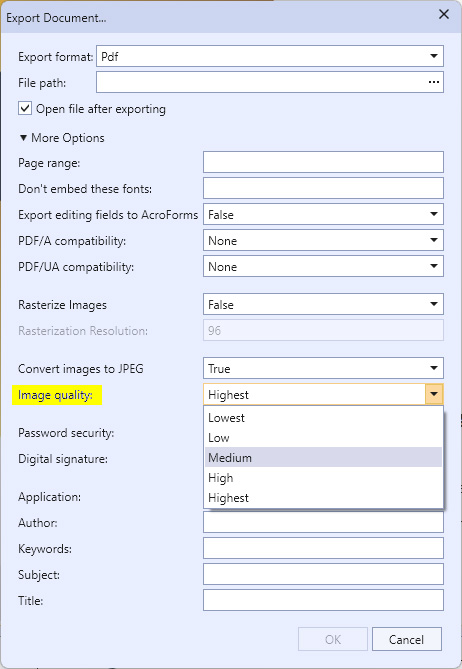
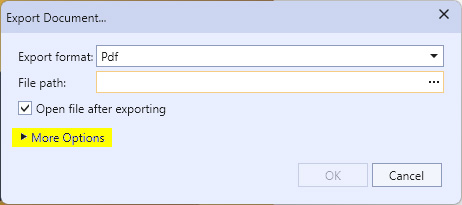
There is a workaround to both keep the ability to edit the original images and reduce the size of reports. After running a report and then choosing to export it, several file formats have the option to reduce the size of images. The following images show this option for PDF files. First, click on "More Options" in the first export dialog box:
Then choose "Image Quality" from the More Options section and pick something other than Highest to find the ideal balance between report size and image quality. Medium often finds a good balance between the two.