The Global Library Editor
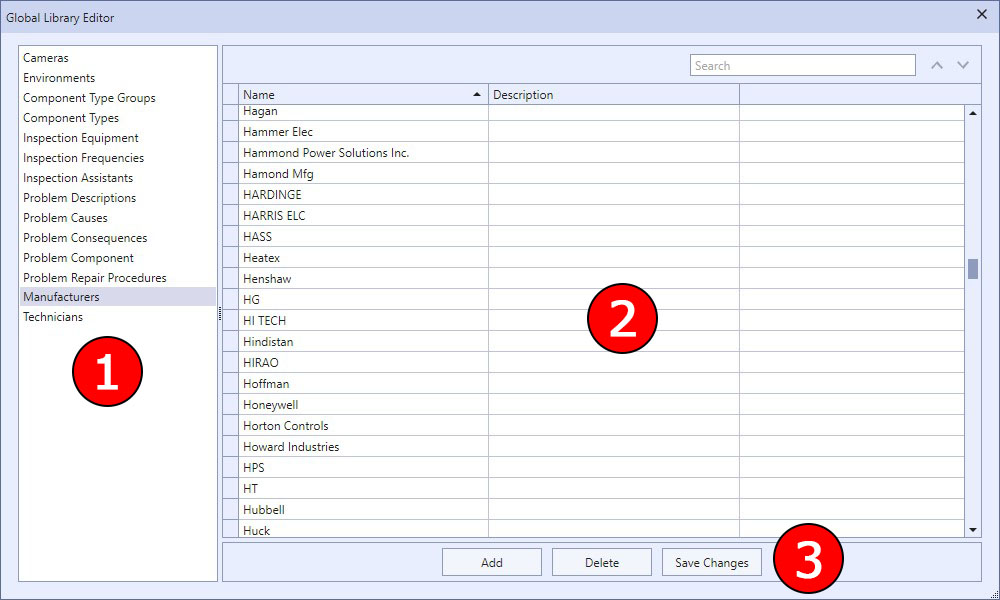
The Global Library Editor is where you can add, edit, and delete entries in your global libraries. The interface is very simple, consisting of a list of library types on the left and the library entries for that type in a grid on the right.
|
The Global Library Editor Dialog |
1 This is the list of all global library item types. When you select an item in this list, all of the associated entries of that type will appear in the grid on the right side of the dialog.
2 You edit the data for library items in this grid.
3 The functions of these three buttons are as follows:
|
Adds a new entry at the bottom of the grid. Note that a new entry is subject to validation rules. For example, Aspect will not allow you to save a manufacturer without a name. If a library item is either missing data or that data is invalid, Aspect will warn you and give you the option of either fixing the problem or discarding the changes. |
|
This deletes an item from the global library. Any references to this library item will be removed from the currently open customer database, but remain as cached items in other customer databases. See the Cached Global Library Items topic for further information.
|
|
Because the Global Library Editor dialog box is modal, you will not have access to the normal Save Database button in the ribbon bar. This button has been provided as a way to save the database while in this dialog box if you will be making extensive changes to your global library and simply want to save the database from time to time. |