The License Management Dialog Box
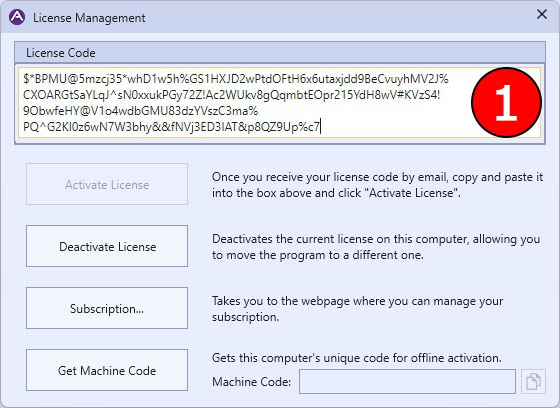
The License Management dialog box is where you enter your license code to activate your copy of Aspect. You can also click on a button to be taken to the Exsero Software website for purchasing information and obtain an offline machine code for activation if you don't have access to the internet. See the Licensing topic for more information on how Aspect is licensed.
|
|
Note: Contacting the license server to either activate or deactivate your license of Aspect requires an internet connection. |

|
The License Management Dialog |
1 Copy and paste the license code you receive from Exsero Software into this text box. Once activated, this text box becomes read-only. Once the software is deactivated, this text box becomes read/write again.
The four buttons on the dialog box do the following:
|
Contacts the Exsero Software licensing server on the internet to activate this copy of Aspect. Note that Aspect licenses only cover one installation of Aspect, so attempting to activate the license on more than one computer will not be allowed by the license server. If you have obtained an offline-activation license code, Aspect will not contact the license server for activation. |
|
Contacts the Exsero Software licensing server on the internet to deactivate this copy of Aspect. Once deactivated, all functions on this installation of Aspect will cease working. The license code can then be moved to another installation of Aspect if desired. Even licenses which were activated offline will require the licensing server to deactivate. |
|
Launches your default web browser and opens the account login page on the Exsero Software website. |
|
Pressing this button fills the Machine Code text box with a unique hardware code which can then be used to activate the software without needing to contact the license server. See the Licensing topic for more information on how to perform an offline activation of the software. |