Location Detail
Location detail contains data for the currently selected location. Location detail is divided into several sections:
Location Photo
A location's photograph does not appear in any report, but simply exists to help the technician conducting the inspection identify the location at the inspection site. This image pulls from the Photo on-deck auto-sequencing field.
Barcode
Locations can have barcodes to help identify them during a location. For example, a hallway with several electrical closets in the same proximity could be identified by a barcode on the door of each closet.
Equipment Default Values (part of Location Data)
The manufacturer and ambient temperature values specify default values for equipment within that location. In many cases, and entire location (such as an electrical room) contains equipment all made by the same manufacturer. When conducting the first inspection of this equipment, you can specify that manufacturer here and Aspect will use this manufacturer when setting default values for the equipment.
The ambient air temperature is used to expedite the entry of component reading temperature data. Many locations are consistent enough that the ambient air temperature will be the same everywhere in that location. When first entering this location, you can take one ambient air temperature reading, fill it in here, and when setting IR default values for equipment Aspect will use this ambient air temperature.
|
|
The location ambient air temperature is not stored in the customer database. It is only kept for as long as Aspect is running because this value will almost certainly change the next time the location is visited. |

For both default manufacturers and ambient air temperature, when Aspect is asked to fill in default values it will search the location parentage until it finds a value or reaches the top of the tree. For example, look at this location hierarchy:
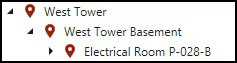
The West Tower of this inspection is absolutely huge, so it makes no sense to put any defaults in this location. However, once we get into the basement perhaps we notice that the ambient air temperature is consistent everywhere, so we set that ambient air temperature to 68F. However, the equipment manufacturer still varies quite a bit throughout the basement. But once we get into the Electrical Room P-028-B we notice that everything in that room was manufactured by Square-D, so we fill in the default manufacturer for that room. Once we start inspecting equipment in the electrical room, when we press the Fill IR Data and Equipment/Component Defaults button, Aspect will fill in the manufacturer of that equipment with Square-D (as long as the equipment's manufacturer is empty). However, since the electrical room doesn't have an ambient air temperature set, Aspect will then traverse up the location hierarchy to the West Tower Basement where it find 68F and fills that into the component data. If we hadn't entered an ambient air temperature at all, Aspect would have continued to look up the location tree until it got to the West Tower, which has no ambient air temperature and no parent location, so nothing would be filled in for ambient air temperature.
Inspection Status
You can set the status of this location here, and by clicking Set Sub-Item Status, Aspect will propagate this status to all sub-locations and equipment in this location. This is handy for example when an entire location is locked out--you can set the location's status to "Not Inspected, Locked Out" and click the button, and the locked out status will be set for everything in that location.
|
|
The Set Sub-Item Status button will only affect locations and equipment whose status is Pending. |
|
|
If Restrictive Editing is enabled, any fields related to inspection data (such as inspection notes) can only be edited when the inspection status is Pending. |
The location status can also be propagated when changing the location status back to Pending from any of the other status codes. All sub-locations whose status is not Inspected will be set to Pending, and all equipment and components whose status is not Inspected or Inspected (No IR Data) will be set to Pending.
Trend This Location
This button allows you to set the Include in Equipment Trending Reports value for all components of equipment in that location and optionally any sub-locations.
Set Sub-Item Inspection Frequency
You can set the inspection frequency of all equipment within this location and optionally any sub-locations to whatever inspection frequency you choose. Inspection Frequencies are used with Inspection Groups.
Set Sub-Item Status
You can set the statuses of all items within a location, and optionally within all sub-locations in that location in a batch operation. For more details, see the help topic on setting sub-item status.
Problem Documentation
Locations can have Problems (visual problems only--not electrical) such as a door to an electrical room that won't lock or a roof that is leaking water all over the electrical gear. You manage those problems here in the exact same way you do for problems in Equipment Detail.
Location Notes
These are location notes that apply to every inspection, such as "Hard hat required in this area."
Inspection Notes
These are location notes that are specific to this inspection, which are good for noting things that may not be severe enough to require being documented as a problem. One example might be a lock to an electrical closet that was sticky or took a long time to get open.
|
|
Location Inspection Notes are shown in the Equipment List report in yellow highlight. |